The build file
Every project has a build.markup.code at its top, which says what it builds and which libraries it uses.
Build files, in the docs, explains what it can
say.
Editing it
IntelliJ treats the build file as its own kind of file. It completes tags and attributes as you type, completes a library's coordinate from the list of published libraries, with the newest version marked, and underlines anything a build would refuse.
You can also edit the project's name, group, version and description in Settings | Build, Execution, Deployment | Nylon, which writes them to the build file for you.
Adding a library
Choose Tools | Nylon | Add Nylon Library…, or right-click in the project view. Pick a library and a version, and click Add. It writes the dependency into your build file and fetches the library. A library your build file already names is marked added, with its version.
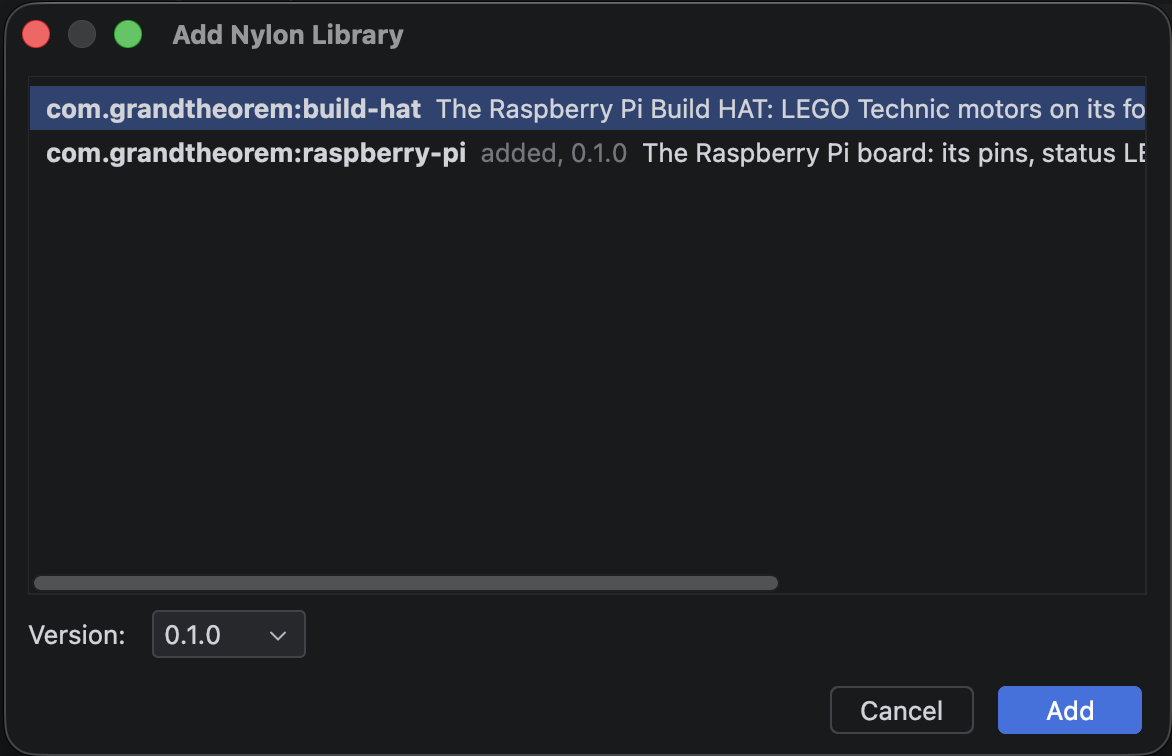
Add Nylon Library from File… adds a library file you have on your computer, and right-clicking Libraries in the Nylon window also offers Add Nylon Library from Git….
Reloading
After you change the build file, IntelliJ fetches and builds what it names when you reload. A Reload dependencies button appears in the build file's top-right corner, and Reload Nylon Dependencies is also on the Build menu, under Tools | Nylon, and in the Nylon window's toolbar.
Run fetches what the build file names before it builds, so you only need to reload to see a new library's declarations while you edit.