Running on a board
Run
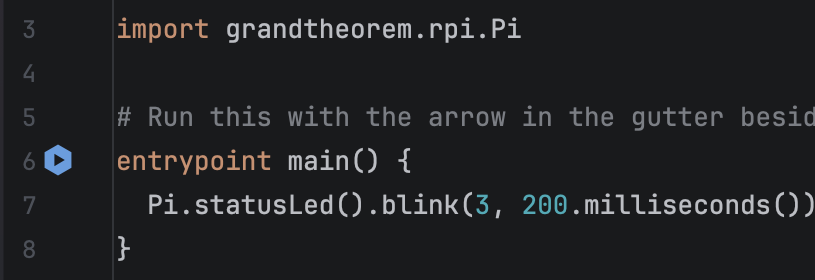
Every entry point has a run icon in the gutter beside it: a blue hexagon with a play arrow in it. Click it, and the entry point runs.
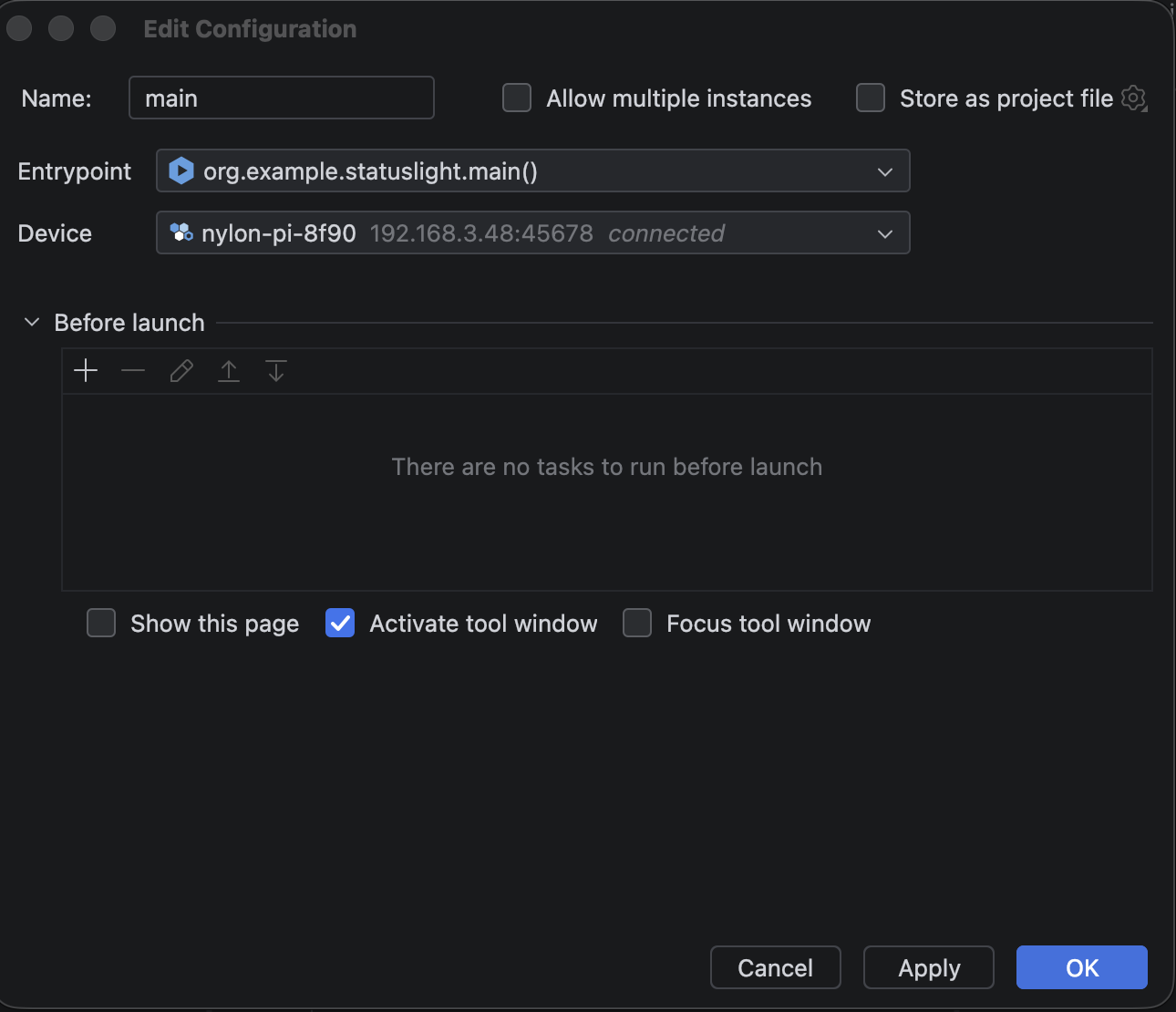
The first time, IntelliJ asks where to run: the run configuration has an Entrypoint and a Device, and the device list shows each board as connected or not. Pick one, and the choice is kept for next time.
Run builds the project first. If it builds, the program is uploaded to the board, with a progress bar while it goes, and then it runs. Debug isn't in V0, so running is all the icon does.
The run window
The run window's first line, Running ... on, names the program and the board it went to. Everything your program
prints follows, and then one line that says how it ended, with how long it ran:
- Finished: the program reached its end.
- Returned: an entry point that gives a value returned it, and the value is shown.
- Stopped: you stopped it.
- Faulted: the program hit a fault, such as reading past the end of an array, and the line says which.
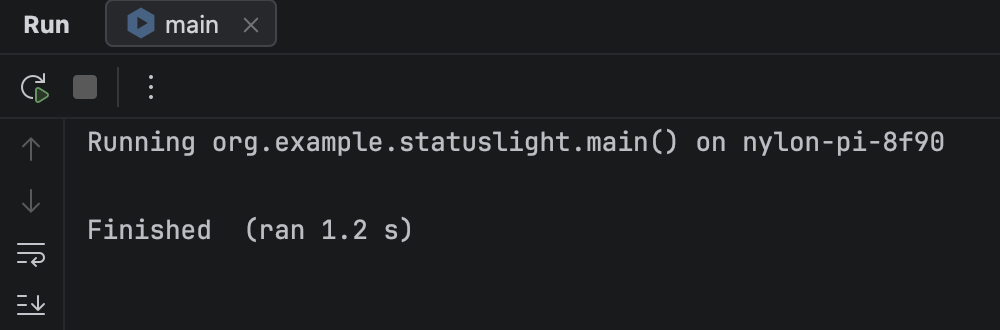
The program in that run is New Project's Raspberry Pi starter, which prints nothing: it blinks the board's status light three times, and then it has finished.
If the build fails, the run window lists each problem with its file, line and column, and nothing is sent to the board. If the board can't be reached, or refuses the run, the run window says so in red.
Stop
The red square in the run window stops the program. Stop Runs in the Nylon window does the same for whatever a board is running, even a run you started earlier.
A fault or a Stop ends your program, not the board: you can run again straight away.